Sparrow On-Demand Start Guide
Quick Start
In this guide, we will learn how to use the Sparrow On-Demand product by connecting to Sparrow On-Demand, performing analysis, checking the results, checking the usage, etc.
🙍♂️ Account Registration
- To create an account, please go to Contact Us on the Sparrow homepage.
- Please leave a request in the Solution/Product/Service Inquiry section. Sparrow will issue an account to the customer.
- Please refer to Account Registration for more details.
🔑 Token Issuance
- Log in to Sparrow On-Demand with the account issued above, and create an individual or organization API key in the My Account in the upper right corner.
- The created API key is input to the API header or SDK parameter.
- Please refer to Token Issuance for more details.
⚙️ Environment Configuration
- Configure the API call environment to send an analysis request.
- Prepare the analysis target, such as source code, repository, or URL, of the project the user will analyze.
🎯 Analysis Execution and Result Download
- Send an analysis request through the Analysis Request API or execute the Java SDK or Node.js SDK to perform the analysis.
- After sending the analysis request, you can check the status of the analysis through the analysis callback. The analysis result is sent through the Analysis Result Download API.
- Please refer to Analysis Request and Callback for more details.
📃 View Analysis Results
- The analysis result includes issues detected from source code, repository, or URL. Please refer to Analysis Result File for more details about the downloaded result file.
- If the analysis fails, the cause is displayed as a result code. Please refer to Result Code for more details.
User Guide
Account Registration
To use the APIs or SDKs provided by Sparrow On-Demand, you must first obtain an API key. An API key requires a registered user account. You can register an account as follows:
- Go to the Inquiry on the Sparrow homepage(https://sparrow.im).
- Enter the Customer Information.
- In Inquiry Contents, for Category, select Product & Service, and in Item, select On-Demand.
- Enter a Title and in the Content section leave a message stating you would like to try Sparrow On-Demand..
- Sparrow will issue an account for you.
Once you receive your account, proceed to generate your API key.
Only customers who have signed a Sparrow On-Demand Solution Partnership Agreement with Sparrow Co., Ltd. can officially use the Sparrow On-Demand service. Partner customers receive their account ID and password upon completion of the partnership contract.
Token Issuance
An API key is required to use Sparrow On-Demand. The API key authenticates users who access the API or SDK over the network.
Every request sent to the service must include your 'API key'.
All analyses performed using that 'API key' will be attributed to the corresponding customer.
You can obtain a token for use as your API key by following these steps:
-
Log in to Sparrow On-Demand using your the registered account ID and password.
-
Click your Username > My Account in the top-right corner.
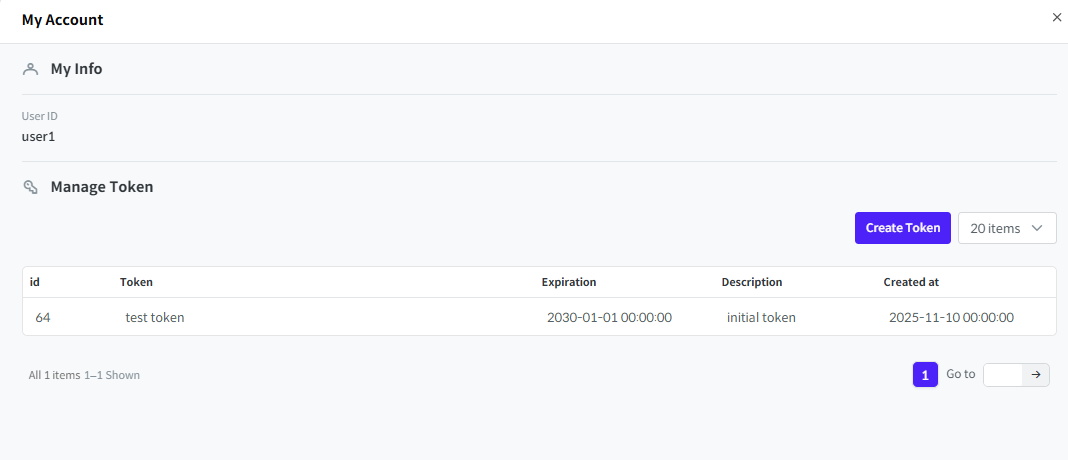
- IN Token Management, click Add Token.
- Enter the Expiration Time and Description, then click Add button.
- Your token will be issued.
Use the issued token by including it in the Token Bearer header for API calls, or as a parameter when creating an SDK client
Analysis Request and Callback
Users can receive information about their requested analysis through callbacks.
Specify the types of callbacks and the callback server when sending an analysis request.
- Analysis Request Process
- Callback Types
There are two types of callbacks.
- Sends a callback whenever the analysis status changes or information is updated.
- Sends a callback when the analysis process finishes (Success, Failure, or Stop).
- Callback Server
Two callback servers can also be specified according to the callback.
- Status Callback Server: The user's server to receive analysis status callbacks.
- Completion Callback Server: The user's server to receive analysis completion callbacks.
You may set the same URL for both callbacks if you want to receive them on the same server.
Analysis Result File
When an analysis is completed, you can download the results as a file using the Analysis Result Request API.
Click here to download a sample result file.
result.zip/
    /summary.json
    /asset
    /sbom
        SPDX.spdx
        CycloneDX.json
        SWID.zip
        ...
    /licenseNotice
        HTML.html
        MARKDOWN.md
        TXT.txt
    /issue
        1.json
        2.json
        ...
    /workMessage.json
The results are compressed into result.zip. For detailed information, see here.
summary.json: Summary information about the analysis, including total vulnerabilities, analysis time, etc.asset: Contains data about each identified analysis target (source code, repository, or URL).- Static(Source code) and component(open source) analysis: List of files subject to analysis
- Dynamic(Web vulnerability) analysis: List of collected URLs
issue: A folder containing information about issues detected in the analysis. The folder contains multiple json files containing issue information. Note that the issue information provided varies depending on the analysis.- Static(Source code) analysis: Issue detection rule name, file, line, etc.
- Component(Open source) analysis: Issue detection rule name, open source name, license information, etc.
- Dynamic(Web vulnerability) analysis: Issue detection rule name, target URL, request information including parameters, etc.
workMessage.json: Includes warnings or important notes related to the analysis.licenseNotice: A folder containing license notices. The folder contains files in text (.txt), markdown (.md), and HTML (.html) formats. For detailed information, please refer to License Notice.sbom: A folder containing SBOM files. Multiple SBOM files are included according to format and version. For detailed information, please refer to SBOM.
The licenseNotice and sbom folders appear only if you downloaded open-source analysis results.
License Notice
Sparrow On-Demand automatically generates license notices by identifying open-source, commercial, and internal libraries. However, for complete accuracy, always check the full license text. License notices do not have a strict standard format, but there are commonly used structures and patterns. Sparrow On-Demand notices include the following information:
- Component name
- SPDX ID
- Full license text
- Copyright information
- Source URL
- Component version
SBOM
SBOM stands for Software Bill of Materials and is a list that records the components and dependencies of a software product. SBOMs are provided in various formats depending on their purpose. Sparrow On-Demand supports the following major SBOM formats:
-
SPDX (Software Package Data Exchange): An SBOM format led by the Linux Foundation, primarily created for open-source license compliance purposes. However, it has the disadvantage of having a complex structure and not directly supporting vulnerability information. (*Reference: https://spdx.dev/)
- SPDX 2.2 (.spdx, .json, .xml, .xlsx)
- SPDX 2.3 (.spdx, .json, .xml, .xlsx)
- SPDX 3.0 (.json)
-
SWID (Software Identification Tag): An SBOM format based on NIST and ISO standards, created primarily to track and manage installed commercial software. It is effective for managing enterprise assets or supporting government procurement.
- SWID (.zip)
-
CycloneDX: An SBOM format led by OWASP, used for software supply chain security and vulnerability response. It is written with a focus on security-related information such as CVE and VEX, and has the advantage of being relatively concise and clear in structure with fast parsing speed. (*Reference: https://cyclonedx.org/)
-
CycloneDX 1.4 (.json)
-
CycloneDX 1.5 (.json)
-
CycloneDX 1.6 (.json)
-
NIS-SBOM Standard: The NIS-SBOM standard presented by the National Intelligence Service (NIS) is a guideline established to strengthen domestic software supply chain security. It consists of 15 core attributes and includes basic information such as component identification, license, hash, and dependency relationships, as well as vulnerability information linkage items.
-
NIS SBOM Standard (v1.0) (.csv)
-
NIS SBOM Standard (v1.0) (.json)
-
NIS SBOM Standard (v1.0) (.pdf)
-
Result Code Collection
When an analysis requested by a user is not completed normally, Sparrow On-Demand returns the following result codes.
| Result Code (ResultCode) | Description |
|---|---|
VCS_REQUEST_EXCEPTION | Invalid values such as incorrect URL or branch information in VCS information were entered in the analysis request. |
VCS_EXCEPTION | An incorrect request related to VCS information was sent, other than the invalid input values mentioned above. |
ANALYSIS_SOURCE_DOWNLOAD_FAIL | Failed to download the analysis source. |
CLIENT_EXCEPTION | An error occurred during source code preprocessing. |
STORAGE_REQUEST_EXCEPTION | Invalid values such as incorrect object or bucket in Object Storage information were entered in the analysis request. |
STORAGE_EXCEPTION | An incorrect request related to Object Storage information was sent, other than the invalid input values mentioned above. |
SERVICE_DISCONNECT | Failed to connect to the analysis engine. |
SERVICE_REQUEST_EXCEPTION | Failed to request the analysis engine. |
TARGET_ACCESS_FAIL | Cannot access the web page URL entered by the user in web vulnerability analysis. |
RECORD_FILE_INVALID | The login record file entered by the user in web vulnerability analysis is invalid. |
ANALYSIS_STOP | Analysis was stopped due to a user-requested analysis stop. |
ANALYSIS_ON_FAILURE | The analysis engine failed during execution. |
ANALYSIS_WORKER_ASSIGN_FAIL | Analysis failed because an analyzer was not assigned. |
ANALYSIS_WORKER_NOT_WORKING | Analysis failed because the analyzer was assigned but terminated or another task is in progress. |
ANALYSIS_WORKER_STOP_FAIL | The user requested analysis stop, but the analysis was not completely stopped. |
ISSUE_SAVE_FAIL | Failed to save issues detected as analysis results. |
COMPONENT_SAVE_FAIL | Failed to save components detected as analysis results. |
ISSUE_SIMILARITY_MODULE_FAIL | Failed to execute the similar issue recommendation module. |
POLICY_MAX_SOURCE_SIZE | The source to be analyzed exceeded the allowed size. |
CREATE_RESULT_FILE_FAIL | Failed to create the analysis result file. |
SBOM_CREATE_FAIL | Failed to create SBOM. |
ANALYSIS_NOT_FOUND | The requested analysis does not exist. |
SERVER_EXCEPTION | An unknown exception occurred. |
INVALID_AUTH | The user's authentication information is invalid. |
ACCESS_DENIED | The user does not have permission. |
INVALID_AUTH | invalid token |
INVALID_DATA | Exception that occurs when the requested value is incorrect. |
INACTIVE_STATUS | Account is in inactive status. |
NO_DATA | Requested data does not exist. |
REQUEST_NOT_DONE | Request is still in progress. |
REQUEST_NOT_FOUND | Analysis request does not exist. |
INVALID_RESULT_SCHEMA_VERSION | resultSchemaVersion value is incorrect. |
ANALYSIS_STOP_INVALID_TARGET | Stop target is incorrect. |
ANALYSIS_TOOL_TYPE_INVALID | toolType value is invalid. |
ANALYSIS_STOP_ALREADY_COMPLETED | Stop target status is already stopped or completed. |
POLICY_DEFINITION | Analysis policy definition is incorrect. |
POLICY_EXPIRE_TIME | Violates analysis policy (validity period). |
POLICY_REQUEST_COUNT | Violates analysis policy (number of analyses). |
DATA_PARSING_FAIL | Data parsing failed. |